
- Perform one of the following actions:
- From the File menu, select Import > Die.
- Click the Import Die icon in the Pandora toolbar.
- In the Import Die dialog box, navigate to the location where you are storing the sample activity files.
- Locate the
Hungry Cat Cartonfolder, select theHungry Cat Carton.CF2file, and click Open.
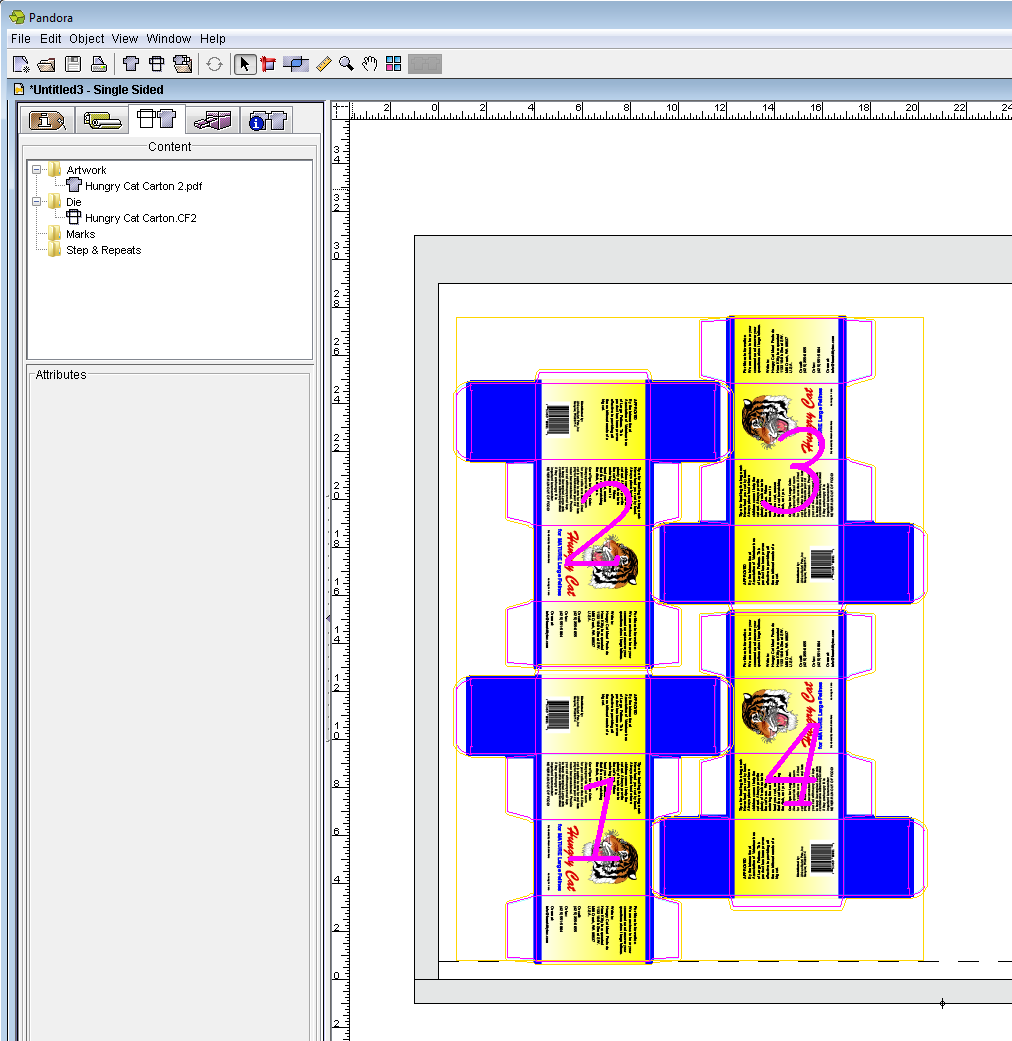
The die appears on the layout. - With the die selected, from the Window menu, select Show Geometry Palette.
- In the Rotation box, type 90.
- Select the upper left point of the reference point diagram, and enter the following information:
X: .75 in. (19.1 mm)
Y: .75 in. (19.1 mm) - From the File menu, select Import > Artwork.
- In the Import Artwork dialog box, locate where you are storing the sample activity files. Locate the
Hungry Cat Cartonfolder. Select theHungry Cat Carton 2.pdffile. Click Import (Windows) or Open (Mac).. - With the die selected, drag the artwork
Hungry Cat Carton 2.pdffrom the Content tab to the selected die. - Click outside the die to deselect it.
Overview
Content Tools