
Open the 3D Preview Tool
Follow these steps to launch the 3D Preview Tool in Adobe Illustrator:
- Launch Adobe Illustrator.
- Open the file you want to preview.
- Go to Window → Prinergy Tools → 3D Preview Tool.
The 3D Preview interface will open.
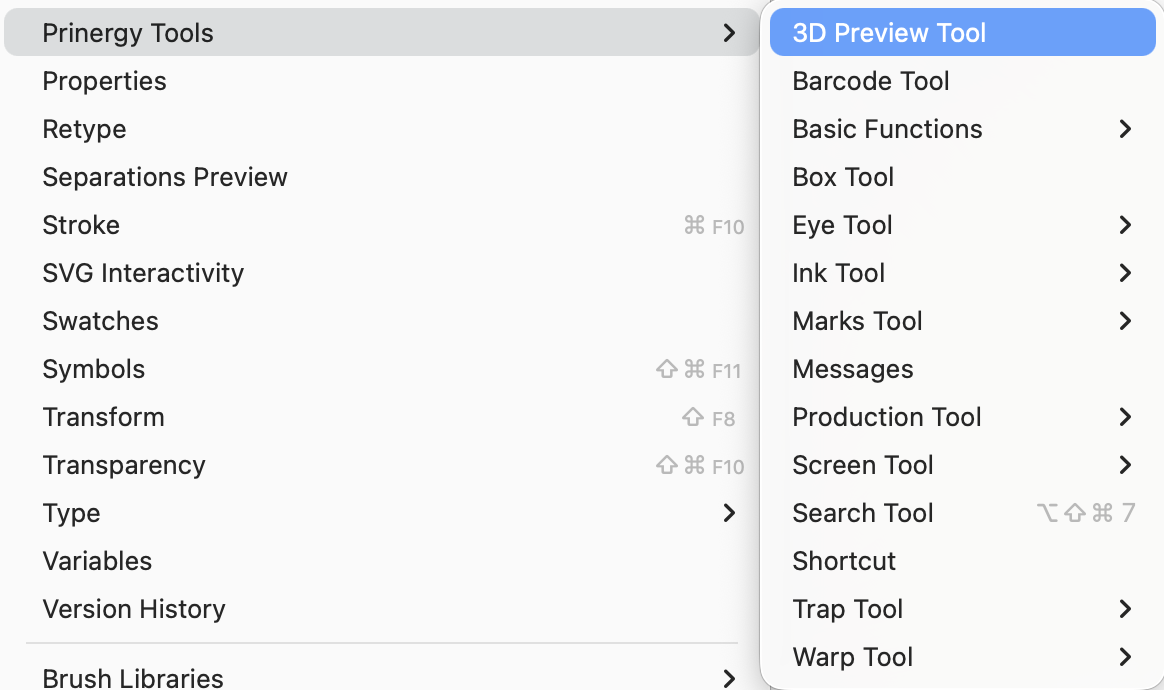
3D Preview Interface
Initial Interface
When the 3D Preview Tool opens, the initial interface provides controls for viewing and exporting the box model.
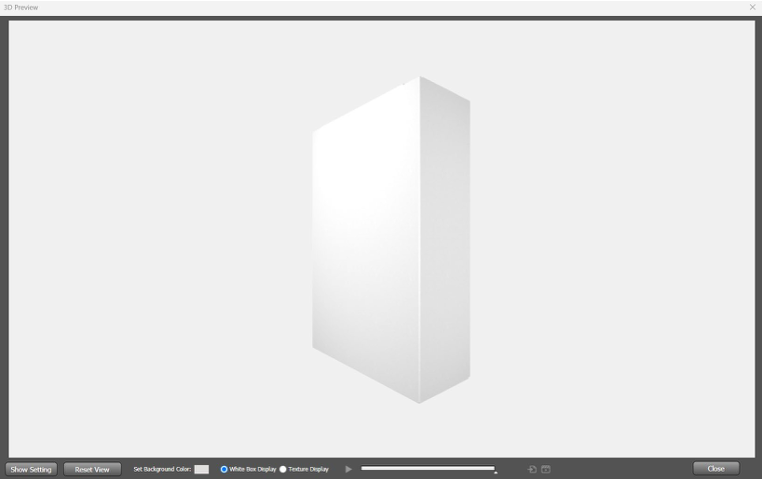
Toolbar Options
Show Settings
Opens the settings panel where folding and box parameters can be configured.Reset View
Restores the box to the default viewing angle.Set Background Color
Changes the background color of the preview area.White Box Display
Displays the box in white. This is the default mode.Texture Display
Displays the packaging artwork texture on the box after selection.
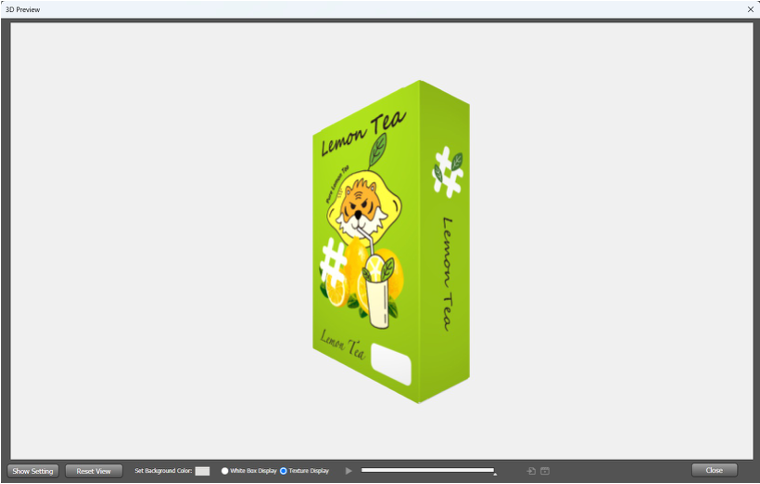
 :Play/Pause display box
 :Export PDF
 :Export MP4
- Close: Close the 3D preview
Settings Interface
Click Show Settings to open the settings interface.
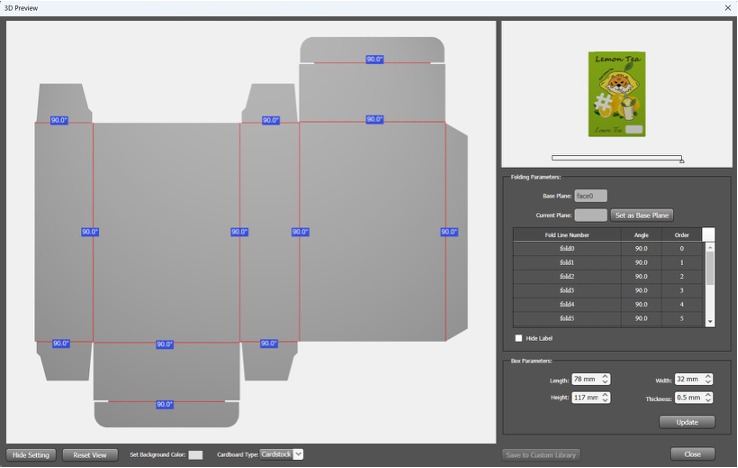
General Settings
Hidden Settings
Returns to the initial interface.Set Background Color
Changes the preview background color.Cardboard Type
Select a cardboard type. Supported options include:- Cardstock (default)
- Corrugated paper
The preview updates immediately when the type is changed.
Save to Custom Library
Saves the modified box to the Custom Library.Close
Closes the 3D Preview Tool.
Folding Parameters
Use folding parameters to control how the box is assembled in 3D.
1. Base Plane
Displays the current base plane. The default base plane is face0.
2. Current Plane
Shows the currently selected plane.
3. Set as Base Plane
Select a plane from the list on the left, then click this button to set it as the base plane.
4. When the base plane is changed, the 3D model updates automatically.
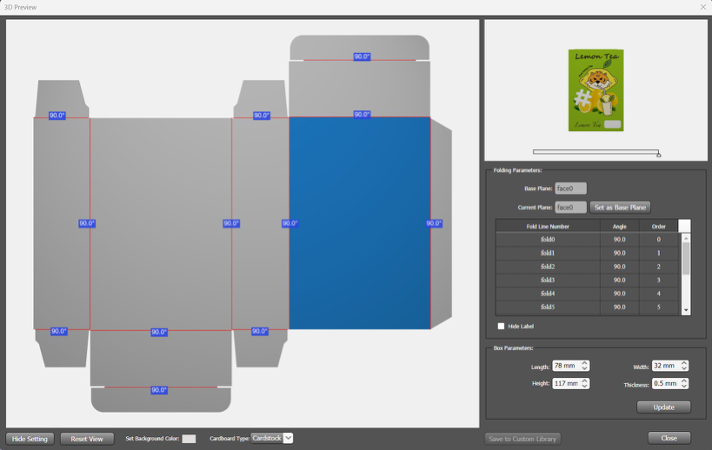
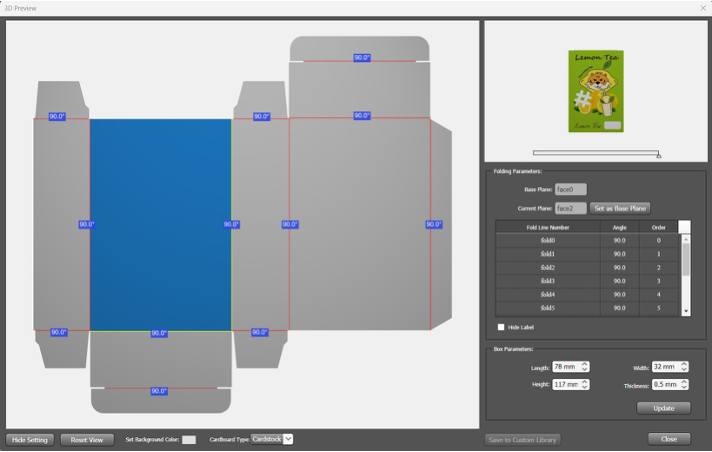
5. Angle: Select a fold line from the list. The selected fold line is highlighted in green in the preview. The corresponding list item is highlighted in blue. Enter a folding angle manually or choose one from the drop‑down list.
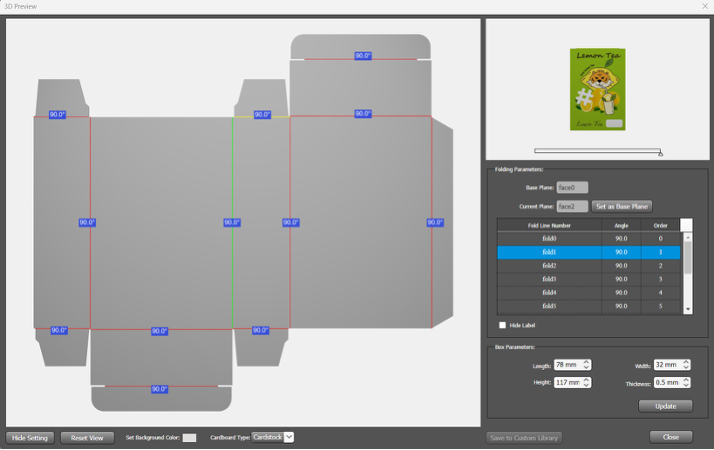
6. Order: Set the folding order manually or adjust it using the up and down buttons.
Fold lines can be deselected by clicking their corresponding numbers in the list.
7. Hide Labels
Hides angle labels in the preview when enabled. Disabled by default.
Box Parameters
Use these settings to adjust box dimensions:
- Length – Displays the current box length
- Width – Displays the current box width
- Height – Displays the current box height
- Thickness – Displays the paper thickness
Click Update to apply changes to the 3D model after modifying the dimensions.
Limitations and Notes
Please be aware of the following limitations when using the 3D Preview Tool:
- There must be no breakpoints between fold lines and cut lines. Gaps between breakpoints must not exceed 5 pt.
- Fold lines and cut lines may intersect, but excessive overlap should be avoided.
- Fold lines must be straight lines. Curves or non-foldable segments are not supported.
- The default folding angle is 90 degrees. Adjust folding angles as required for the specific box type.
- For box designs with webbed corners, the system may automatically convert some fold lines into cut lines.
It is recommended to manually convert the related line segments into cut lines to prevent connected surfaces from forming circular structures.