
File menu
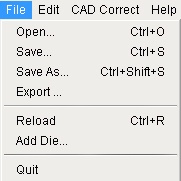
| Open | Select and open a CF2 or EPS file for editing. |
| Save | Save the open file. |
| Save As | Save the open file with a new name and/or location that you specify. |
| Export | Export the file for use in editing programs such as Adobe Illustrator. |
| Reload | Reload the last saved version of the open file. |
| Add Die | Add pattern files (CF2 or EPS) to the original. |
| Quit | Quit the application. |
Edit menu
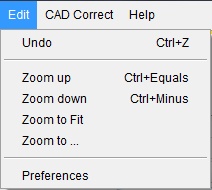
| Undo | Undo the last item. |
| Zoom up | Zoom in on the Preview pane. |
| Zoom down | Zoom out on the Preview pane. |
| Zoom to Fit | Zoom the Preview pane to fit its contents. |
| Zoom to | Zoom the Preview pane to a percentage that you specify. |
| Preferences | Open the Preferences dialog box. |
CAD Correct menu
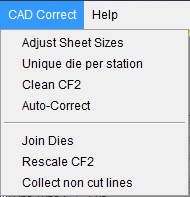
| Adjust Sheet Sizes | Recalculate the sheet size to fit the outer boundaries of the die. |
| Unique die per stations | Create unique dies for all stations (duplicating dies for multiple station dies). The new die name is |
| Clean CF2 | Remove unused or empty patterns to the CF2 file and eliminate similar redundant patterns. Also check for pattern rotation to compact the file. |
| Auto-Correct | Allow automatic correction of the patterns. Use this setting with caution, because the automatic algorithm cannot determine whether a line in the pattern |
| Join Dies | Concatenate the values of two (or all) of the patterns in the stations. |
| Rescale CF2 | Rescale the complete file by a given factor, only for scales between 1/100 and 100. |
| Collect non cut lines | For flat files after the extraction of individual dies, assign remaining non-cut lines from the original pattern to the extracted dies if possible. |
Help menu
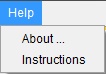
| About | Show the version number of CAD Correct. |
| Instructions | Open the User Guide. |