
- Find and open the
Brighton Cracker Boxfolder, select theCracker Box.pdffile, and drag it to the Content tab.
Or, click the Import Artwork tool . In the Import Artwork dialog box, locate where you are storing the sample activity files, select
 Cracker Box.pdf, and click Import (Windows) or Open (Mac).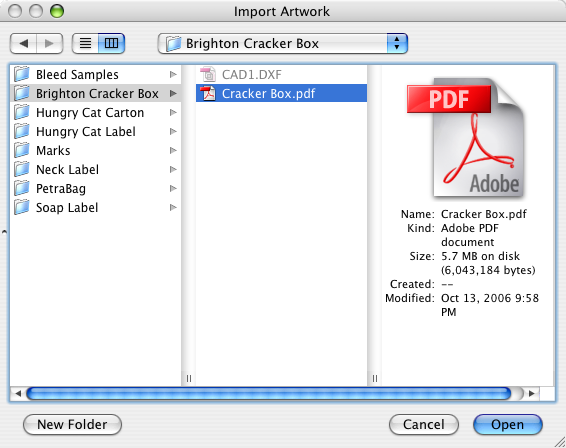
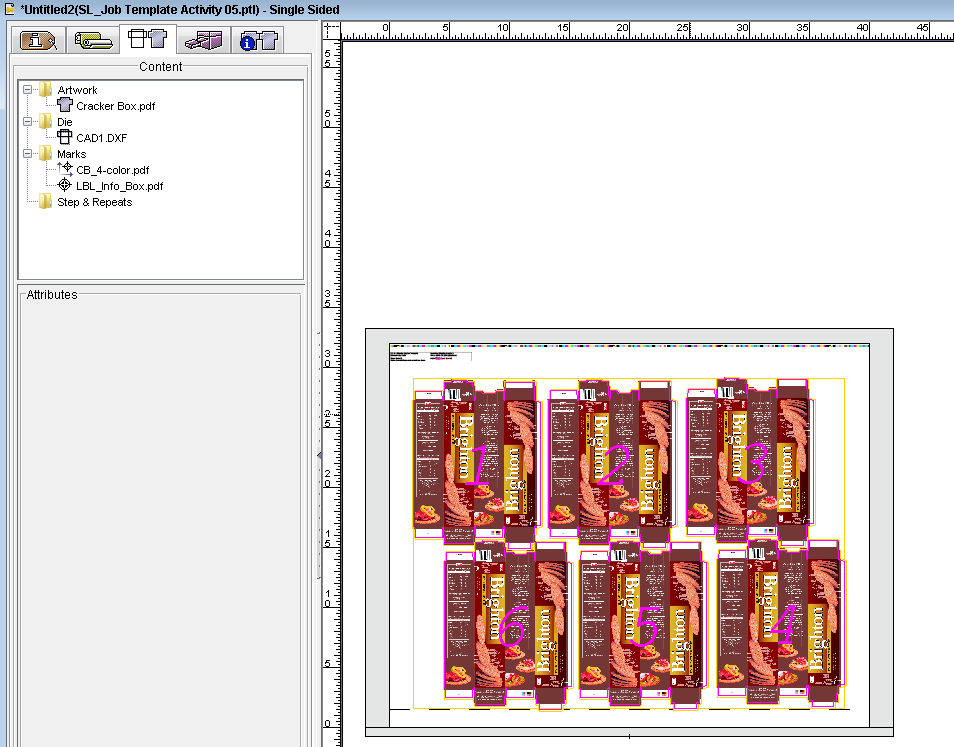
- In the layout view, select the die. Drag the
Cracker Box.pdfartwork to the selected die.
- View the imposed artwork.
- Select the Job Information tab in the job properties view, and add additional comments about the live job, for example,
<Job Completed Tuesday, January 05 2016>.
This information appears as part of the new live job, but won't be reflected in the template.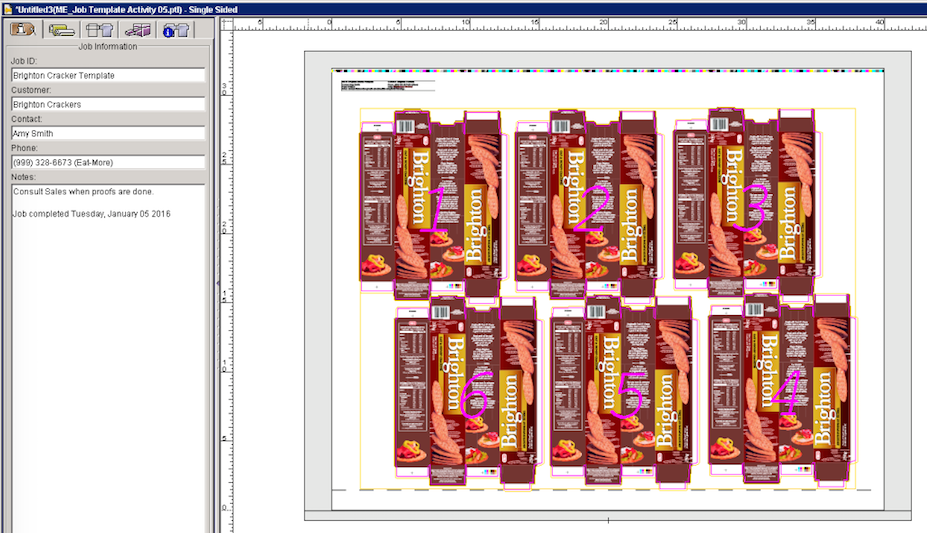
Overview
Content Tools