Box
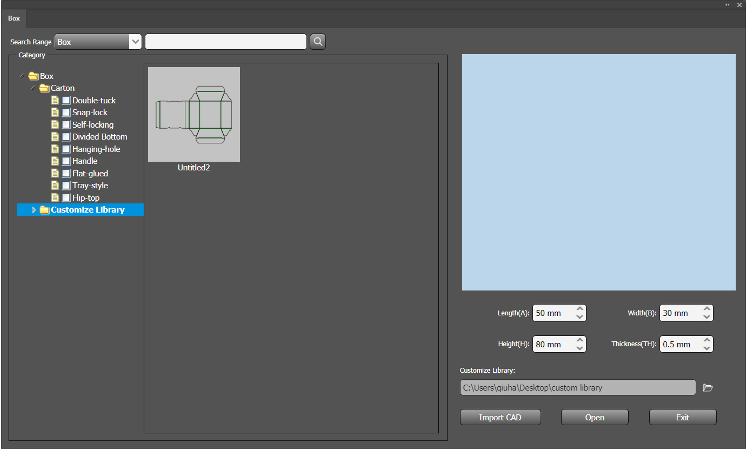
Use the Box panel to select, preview, and configure carton box styles.
Select a Box Style
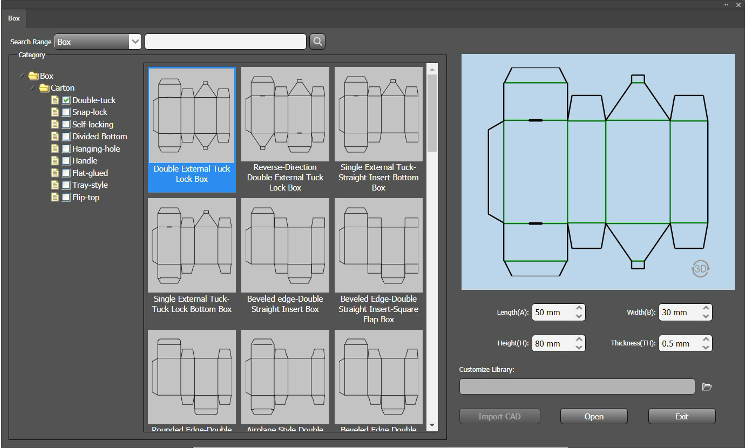
- In the left panel, go to Category → Box → Carton.
- Click a box type, then choose a specific style.
- The selected box will appear on the right with:
- A 2D unfolded view
- Default Length, Width, and Height
Available Box Types
You can choose from the following carton styles:
- Double-tuck boxes
- Snap-lock boxes
- Self-locking boxes
- Divided-bottom boxes
- Hanging hole boxes
- Handle boxes
- Flat-glued boxes
- Tray-style boxes
- Flip-top boxes
Configure Box Settings
Use the controls on the right panel to adjust your box:
2D / 3D Toggle
Switch between flat (2D) and assembled (3D) views.Length / Width / Height
Modify the box dimensions.Thickness
Adjust the material (paper) thickness.Open
Place the selected box onto the artboard. The interface will minimize automatically.
Understanding Line Types
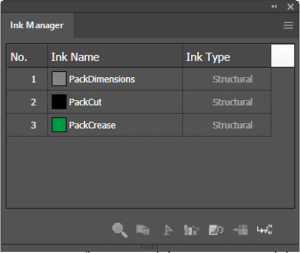
When the box is placed on the artboard, different line types are used:
- PackCut — Cutting lines
- PackCrease — Folding lines
- PackDimensions — Reference (auxiliary) lines
Customize Library
Use the Customize Library to import and manage custom box designs.
Open the Custom Library
- Click the Customize Library icon.
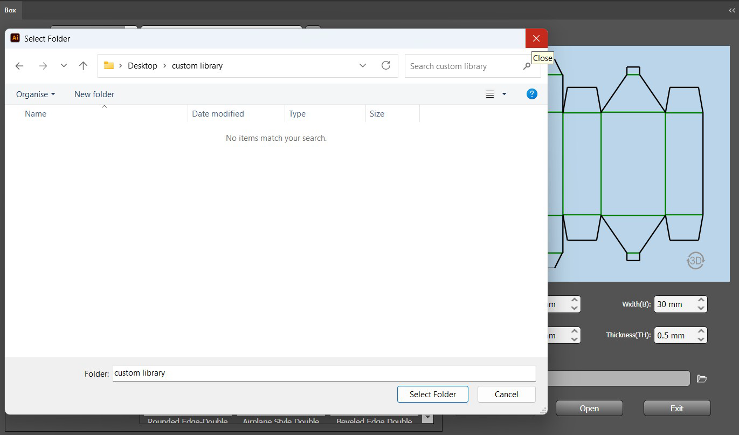
- Select a folder to store your custom files.
- Once selected, the folder path will be displayed in the interface.
Import CAD Files
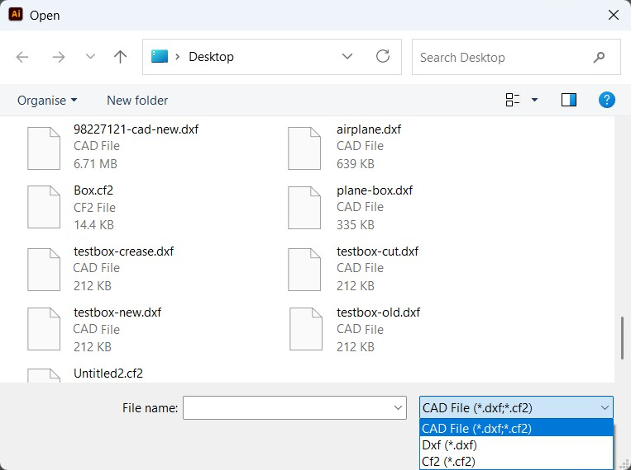
- Click Import CAD.
- Select
.dxfor.cf2files. - Imported files will appear in the library for future use.