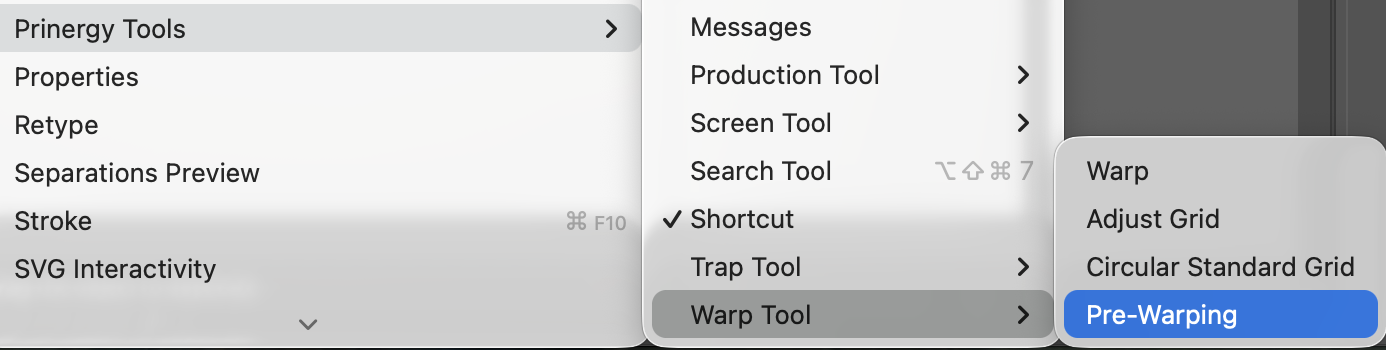
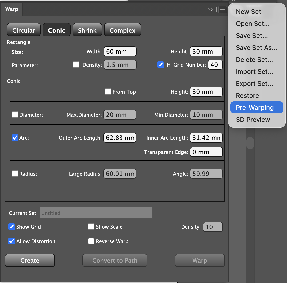
Pre-Warping
During the packaging design stage (for example, plastic bottles, metal cans, or paper cups), Pre-Warping generates a 3D model along with corresponding mesh deformation data based on the container’s shape and defined settings. This provides the foundation for accurate distortion of artwork.
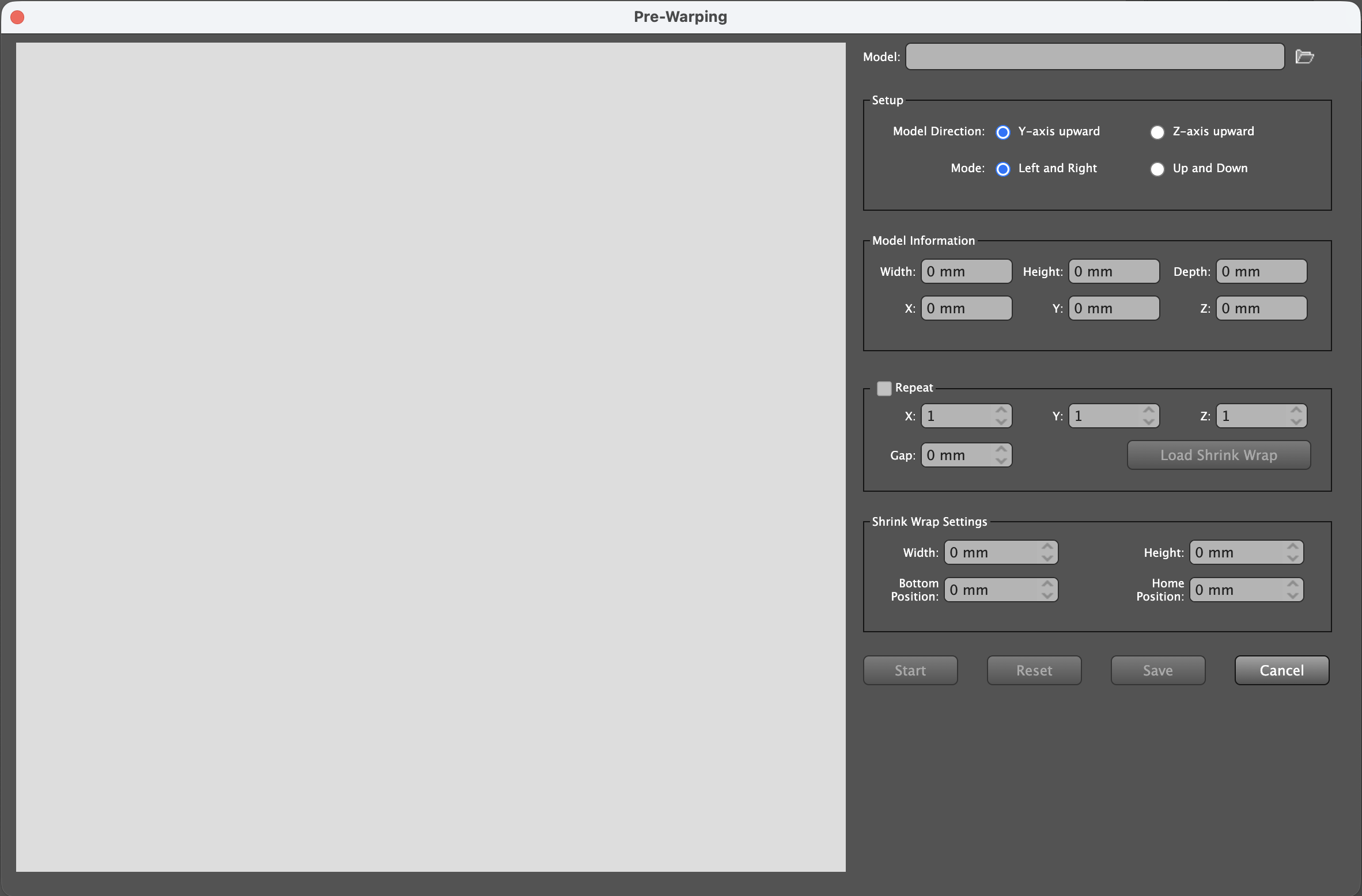
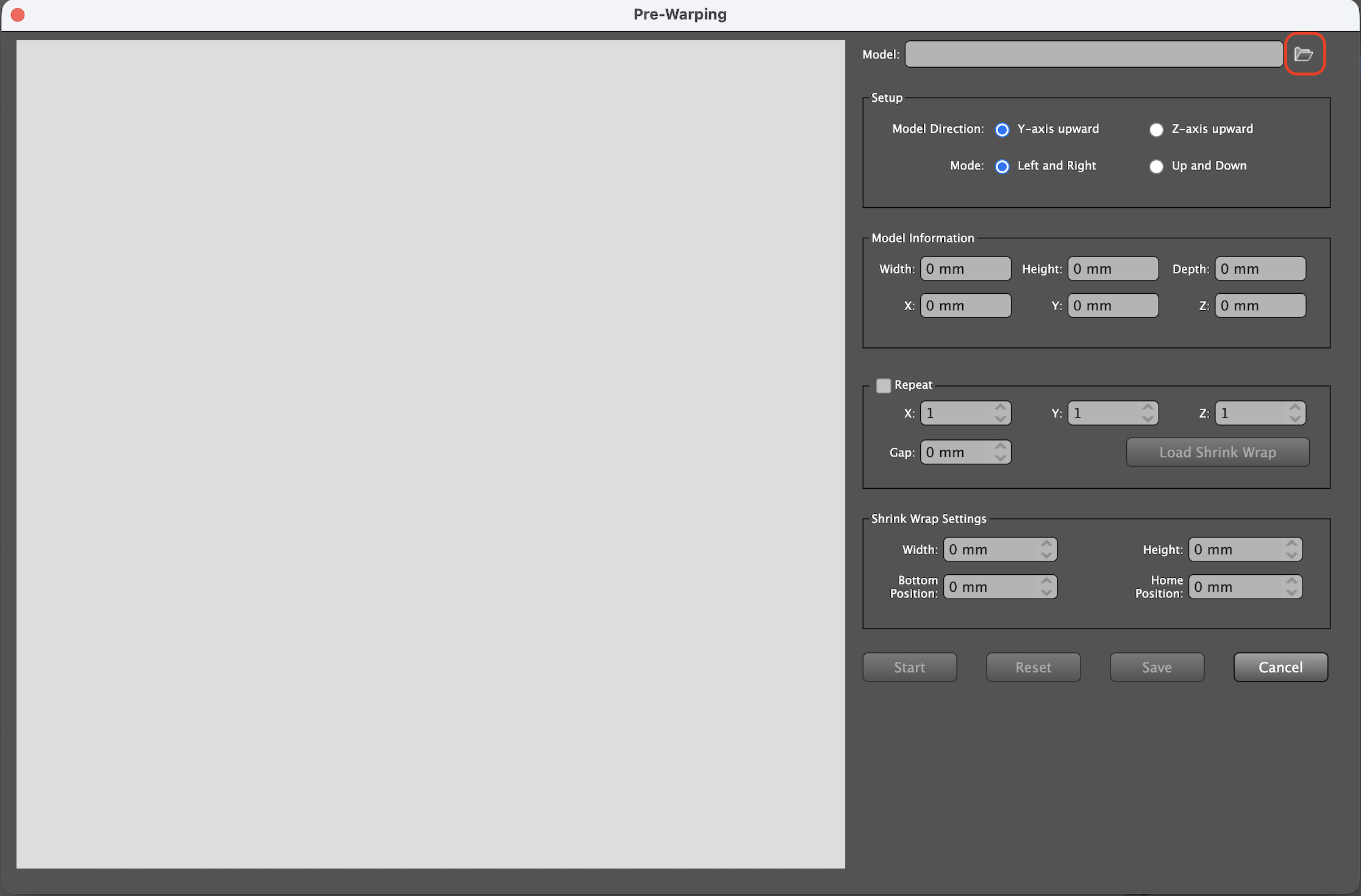
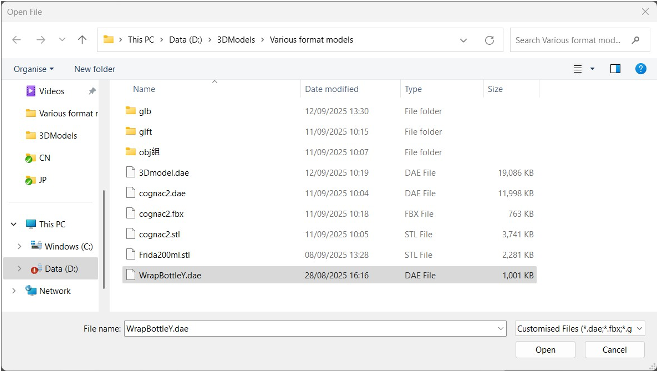
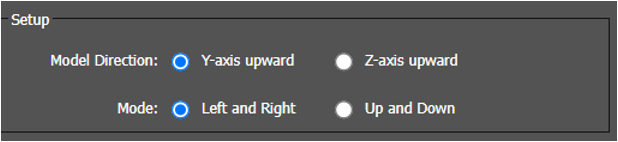
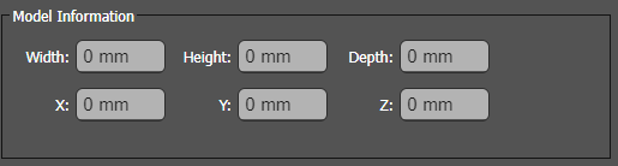
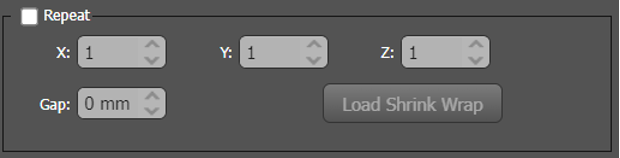
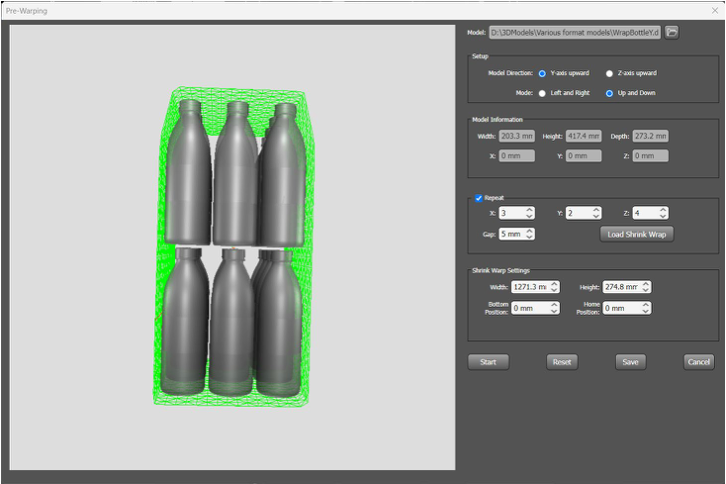
Shrink Wrap Settings:
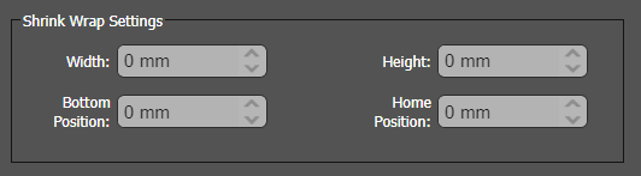
When the model is not rotating, the movement direction of the shrinkable film depends on the selected shrinking mode:
Left-Right Shrinking Mode
The shrinkable film moves vertically (up and down), starting from the bottom of the model.
Up-Down Shrinking Mode
The shrinkable film moves horizontally (left and right), starting from the front side of the model.
Note: This parameter supports negative values, which can be used to reverse the movement direction if needed.
Start Button
Click Start to begin the heat-shrink process. Once activated, the button label changes to Stop.
Reset Button
Click Reset to clear all values in the interface and restore them to their default settings.
Save Button
After the heat-shrink process is complete, click Save to store the heat-shrinked model.
Once saved successfully, the dialog box will close automatically.
The grid information will be written to the Illustrator file.
A new locked layer named Shrink Area will be created.
The Save button is disabled during the process (after clicking Start) and becomes enabled again after clicking Stop.
Cancel Button
Click Cancel to close the pre-warping dialog box without saving changes.